Documentation Index

Fetch the complete documentation index at: https://docs.tallwatch.com/llms.txt

Use this file to discover all available pages before exploring further.

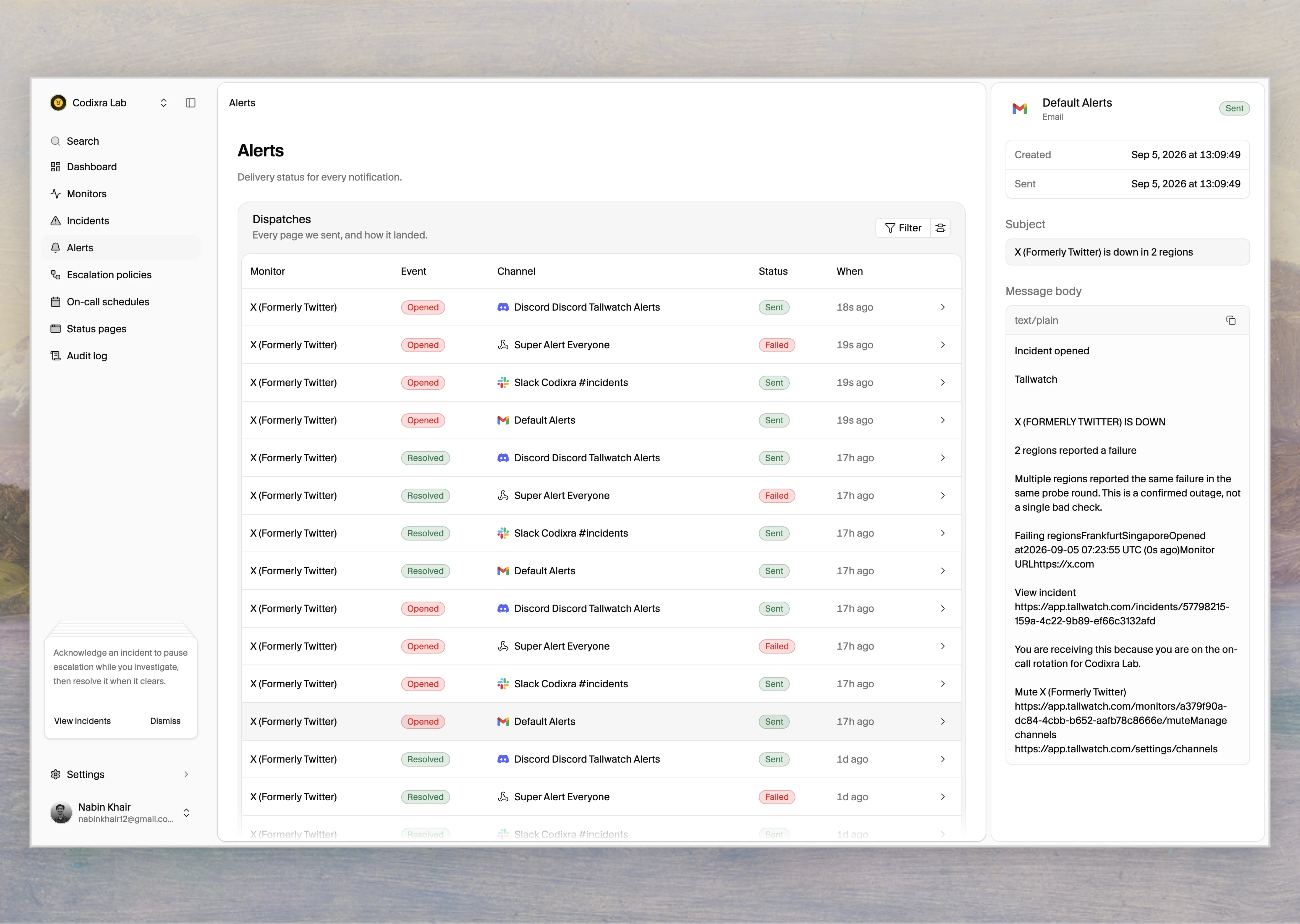
When an incident opens or resolves, Tallwatch sends an alert. A channel is one place an alert can go. You add channels, then decide which monitors use which channels through escalation policies.

Connect a channel

Each channel is a short form: pick the type, paste the credentials it needs, and click Send test alert to confirm it works before you rely on it.
https://mintcdn.com/tallwatch/F-dDcxhw3J2Q0xWz/icons/mail.svg?fit=max&auto=format&n=F-dDcxhw3J2Q0xWz&q=85&s=3078460141e9ffd34c12b005d6903b11

Email

Up to 50 recipients per channel.
https://mintcdn.com/tallwatch/F-dDcxhw3J2Q0xWz/icons/slack.svg?fit=max&auto=format&n=F-dDcxhw3J2Q0xWz&q=85&s=865b456cdf9168fa92688ab3ed989581

Slack

An incoming webhook URL.
https://mintcdn.com/tallwatch/F-dDcxhw3J2Q0xWz/icons/discord.svg?fit=max&auto=format&n=F-dDcxhw3J2Q0xWz&q=85&s=84bc4cf0f628918724407f383aed2f50

Discord

A server webhook URL.
https://mintcdn.com/tallwatch/F-dDcxhw3J2Q0xWz/icons/microsoft.svg?fit=max&auto=format&n=F-dDcxhw3J2Q0xWz&q=85&s=43371aa7e98468660e5e77c1a55b95f4

Microsoft Teams

A Workflows webhook.
https://mintcdn.com/tallwatch/F-dDcxhw3J2Q0xWz/icons/telegram.svg?fit=max&auto=format&n=F-dDcxhw3J2Q0xWz&q=85&s=01e3ef6a3fa01e0d7b4e61c24c4c21c2

Telegram

A bot token and chat ID.
https://mintcdn.com/tallwatch/F-dDcxhw3J2Q0xWz/icons/call-ringing.svg?fit=max&auto=format&n=F-dDcxhw3J2Q0xWz&q=85&s=06af8963eae7eab938935f9d89c37bec

PagerDuty

An Events API v2 integration key.
https://mintcdn.com/tallwatch/F-dDcxhw3J2Q0xWz/icons/code.svg?fit=max&auto=format&n=F-dDcxhw3J2Q0xWz&q=85&s=47b21828be94b95c89fe565d9f1ee8a3

Webhook

A signed POST to your own endpoint.
Not sure which to use?
Use Slack, Discord, or Teams, whichever your team keeps open all day.
Use PagerDuty, or an on-call schedule targeting an email or chat channel. PagerDuty owns the rotation, mobile push, and SMS at the device layer.
Use email with a distribution list. The thread outlives whatever chat tool you switch to later.
Use a webhook. Verify the signature, read the payload, and route it however you like.

Where alerts go by default

Every workspace starts with a Default Alerts email channel seeded with your address. A monitor with no escalation policy falls back to every enabled channel, so a new account gets alerts without any routing setup. Once you have more than a channel or two, set up routing.

Route alerts to the right people

Two pieces decide who hears about what:
https://mintcdn.com/tallwatch/F-dDcxhw3J2Q0xWz/icons/route.svg?fit=max&auto=format&n=F-dDcxhw3J2Q0xWz&q=85&s=b78f343a4763822e3878b61275529e54

Escalation policies

Ordered levels that keep paging wider until someone acknowledges.
https://mintcdn.com/tallwatch/F-dDcxhw3J2Q0xWz/icons/calendar.svg?fit=max&auto=format&n=F-dDcxhw3J2Q0xWz&q=85&s=8184d5dcc4e0d4e365434ec657eec601

On-call schedules

Rotations and overrides, so a policy can page whoever is on call right now.

How delivery behaves

A few things hold across every channel:
  • Alerts send immediately. There’s no artificial delay or rate limit on Tallwatch’s side. If a destination like Slack throttles a burst, that’s its own limit, not ours.
  • Transient failures retry. A 5xx, a 429, or a network blip is retried a few times in place before the dispatch is marked failed on the incident.
  • No duplicates. The same incident event never sends twice to the same channel.
If a channel breaks (a revoked webhook, a deleted Slack channel), the dispatch shows as failed on the incident with the exact error, and you can resend after fixing it.