Documentation Index

Fetch the complete documentation index at: https://docs.tallwatch.com/llms.txt

Use this file to discover all available pages before exploring further.

An escalation policy decides what happens after an incident opens: who’s alerted first, and who’s pulled in if nobody responds. Without one, a monitor falls back to every enabled channel. With one, you control the order and the timing.

How a policy is built

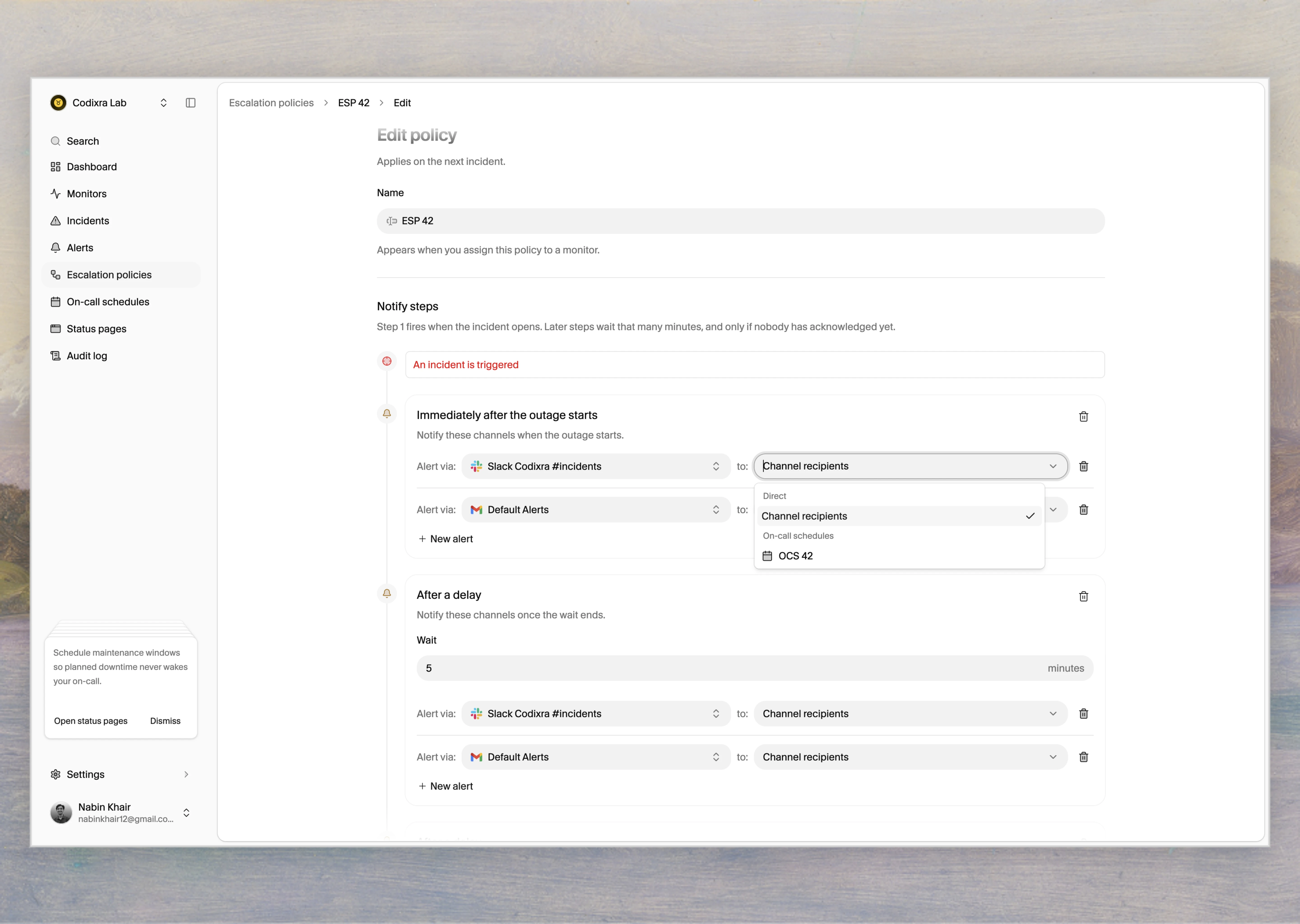
A policy is a list of ordered levels. Each level waits a set time, then fires its targets if the incident still isn’t acknowledged. The first level fires immediately; later levels are the “still nobody? widen it” steps. Each level has:
  • A wait time, how long to hold before this level fires. The first level is usually zero (fire now). A later level might wait 5 or 10 minutes.
  • One or more targets, each either an alert channel or an on-call schedule. A schedule target pages whoever is on call at that moment.

Create one

1

Open the policies page

Go to Escalation policies and click Create policy. Give it a name that says what it’s for, like Production paging.
2

Set the first level

Add the channel that should hear about every incident right away, for example your team’s Slack channel. Leave its wait at zero so it fires the moment an incident opens.
3

Add escalation levels

Add a second level with a wait (say 10 minutes) targeting an on-call schedule or PagerDuty. If level one goes unacknowledged for that long, level two fires.
4

Save

Save the policy. It’s now available to attach to monitors.

Attach it to monitors

A policy does nothing until a monitor uses it. Open a monitor’s settings, pick the policy, and save. New incidents on that monitor follow it. Reuse one policy across many monitors that should escalate the same way.
A policy that’s still attached to a monitor can’t be deleted. Move those monitors to another policy first, then delete.

Time-aware levels (partial)

A level can carry a time window (timezone, weekdays, and an hour range) so it only fires during, say, business hours. This field exists, but enforcement isn’t fully verified in this release. Don’t rely on a time window as the only thing standing between an alert and a quiet weekend. Use it as a refinement, and test it before you trust it.

A pattern that works

For a production service:
  1. Level 1, immediate: the team chat channel. Most incidents are seen and handled here.
  2. Level 2, after 10 minutes: an on-call schedule or PagerDuty. If chat didn’t catch it, this pages the responsible person.
  3. Level 3, after another 15 minutes: a wider group or a manager. The rare incident nobody has picked up gets visibility.
Acknowledging the incident stops the escalation, so picking it up early keeps levels two and three from ever firing.